Why put your journal on the home screen?
Most journaling habits don’t end because people stop caring. They end because the app is four taps away, and on a full day four taps is enough friction to become “later”, and later becomes never. The fix is not more willpower — it is moving the first tap to where your thumb already is.
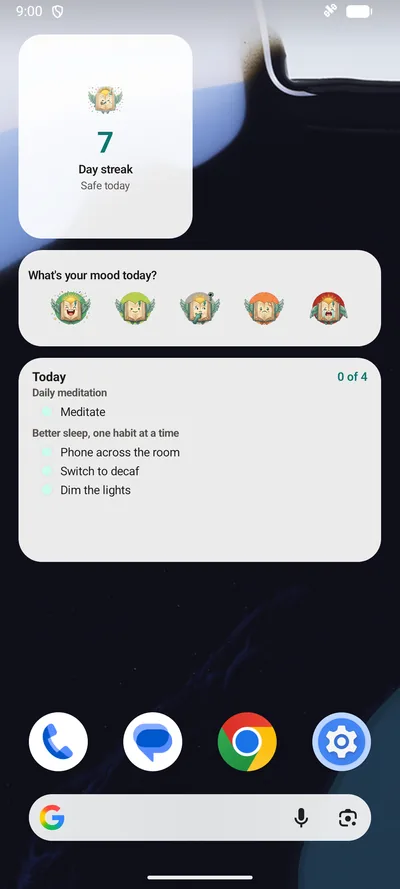
That is what BrightLog’s three home-screen widgets do, on iPhone, iPad and Android alike: Daily Mood opens the check-in with your mood already chosen, Daily Streak keeps your run of days in sight, and Daily Tasks shows today’s habits where you can actually see them. Each one is a door straight into the right screen of the app — and each one works in all 20 of BrightLog’s languages, in light and dark.
Daily Mood — the check-in starts on your home screen
The Daily Mood widget shows the same five faces that open every BrightLog check-in — Awesome, Good, Not sure, Bad, Terrible. Tap the one that fits and the check-in opens with that level already selected: confirm, and today is logged. When you have a minute more, the same check-in lets you name the feeling precisely on the 82-emotion feelings wheel — but on the days you don’t, one tap is a real entry, and a mood series built from quick, honest readings beats a detailed log you abandon in week two.
Already checked in? The widget says so — “Logged today” — and tapping it opens today’s entry so you can revise the reading instead of duplicating it.
Daily Streak — the day, secured
The Daily Streak widget is the mascot, your current run of days, and one line of status: “Safe today” once anything is logged, “Not logged yet” while the day is still open. That one glance — is today safe? — is the gentlest reminder there is: no notification, no badge count, just the streak sitting where you’ll see it anyway.
A detail for night owls: a half-past-midnight entry counts for the new day, and a streak you have seen is never taken back; before 4 a.m. the mascot on the widget is simply asleep rather than nagging. Tapping the widget opens your badges, the little milestones your consistency has been quietly collecting.
Daily Tasks — today’s plan where you can see it
If you use BrightLog’s goals, the Daily Tasks widget lists what is due today, grouped under the goal it belongs to, with a running count — “2 of 4” — in the corner. Tap it and the check-in opens so you can tick things off; when a day is packed, the list caps itself with “+2 more” rather than shrinking the text into illegibility. On an empty day it says “Nothing due today”, and when you finish, “All done”. A task set to any few days a week shows its week — “2 of 3 this week” — and a task on a pause, or already met for the week, isn’t listed, so the widget only ever shows what you can still do today.
Seeing the plan is half of doing it: a habit needs an anchor, and a list on the home screen is an anchor you can’t tidy away.
Setting them up on iPhone, iPad and Android
On iPhone and iPad: touch and hold an empty spot on the home screen, tap Edit → Add Widget, and search for BrightLog. Daily Streak comes in small and medium, Daily Mood in medium (five faces need the width), and Daily Tasks in medium and large.
On Android: touch and hold an empty spot, choose Widgets, and find BrightLog. All three are resizable — drag the handles to give Daily Tasks more room, or keep Daily Streak at a compact two-by-two tile.
The widgets follow the language you chose inside BrightLog — set the app to any of its 20 languages and the widgets switch with it, whatever language the device itself uses. Light and dark follow your device’s setting, with nothing to remember.
Private, even on the busiest screen you own
A widget lives on the most public screen of your device, so it is built to give nothing away: it never shows journal text — the most personal thing on it is the name of a habit or goal you chose to track, and today’s mood face.
The journal behind it keeps BrightLog’s usual rules: your information never leaves your device, a backup, only if you choose one, goes to your own iCloud or Google Drive, and if you use App Lock, tapping a widget still lands behind it — the app asks you to unlock it first.